Practical guide to setting up a Home Lab (part 1)
- Rafal Koziarz
- Automation , Server
- April 30, 2025
Table of Contents
Home Lab is a fun way to learn and experiment, but it can also be a powerful tool for automating some of the daily tasks, without the need for 3rd party cloud or expensive SaaS licenses. For anyone, regardless of your technical background, it can be a gateway to managing your own (free!) AI/LLMs and creating automation using no-code tools like n8n (see ‘Automate Everything!’)
For anyone working in software development, it is also a chance to be your own IT department - handling everything yourself - infrastructure, identity, scripting, DevOps process, development and much more. It also gives you the opportunity to experiment with new technology without the walls of enterprise proxies, policies and politics.
For those of you interested in Solution and Enterprise Architecture, I believe it gives you the opportunity to shape an opinion about each layer in the stack. A simple hello world can be enough to build empathy for what developers have to go through when using certain technologies.
In my introduction post I mentioned the concept of a Second Brain - the role of my Home Lab will also be, to help me manage the tremendous amount of information I come across each day and condense it into manageable content that I can digest while having my morning breakfast. More on that in the ‘Compressing my day into a PDF’ section which will be published in part 2.
In Part 1 of this post we will explore the setup, the reason and where this can take you Part 2 will focus on solid examples of running complex agent setups, automation workflows, exposing services to the internet and more
What is a Home Lab?
Home Lab is essentially a server that runs your “home” development, services and experiments. Whether it’s just a server, depends on what you are doing. Claude describes the difference between the two as this:
A server is a single computer dedicated to providing specific services on a network, while a home lab is a broader experimental environment containing multiple devices (which may include servers) used for learning, testing, and skill development in a risk-free setting.
My Setup
Although technically anything can be a server and your existing laptop or PC can serve as a Home Lab / server, having a separate device that will run 24/7 was the reason why I opted for buying a Mac Mini.
The Hardware
I went for the absolute basic model with a M4 chip and 16GB ram - more than plenty for the type of things I will talk about in this post
The system consumes 4w of power when idle, which is incredible. It runs cool and completely quiet and you can theoretically place it anywhere around the house or you could make it portable, if you’re a DIY magician
The Software
After going through the standard MacOS setup, I made a list of things I initially wanted to have installed:
| Application | Purpose |
|---|---|
| Docker Desktop | Running containers and managing images / volumes |
| Brew | Package Manager |
| Ollama | Local LLM manager |
| Claude Desktop | Claude LLM interface for MacOS |
| git | Code control (pre-installed possibly) |
| ngrok (via brew) | Useful tool for quickly tunneling applications via the internet (more on that in part 2) |
| macmon (via brew) | Very cool resource monitor |
| Node, Python etc. (via brew) | Programming languages / frameworks |
| uv | Python package installer |
| Jupyter Labs | Python IDE |
| Cursor | AI-powered IDE |
| Visual Studio Code | All-rounded IDE |
| n8n (via npm) | Automation Framework (more on that in section ‘Automate everything!’) |
| OpenWebUI (via Docker) | UI for interacting with LLMs, very commonly paired with Ollama |
| ExpressVPN | For VPN connections |
| Warp | Terminal |
Tip
NixOS is an example of a fully declarative operating system - meaning if I passed you the configuration, you could fully reproduce everything I have done to the smallest detail, with a single run command. Unfortunately not a MacOS feature!
Local (free!) LLMs / AI
Ollama
Ollama, by Meta, is an open source tool for managing your LLMs locally. To get started (once you have it installed) is super simple and feels intuitive if you know how docker works
Some quick examples:
Pulling the llama.3.2 model (it doesn’t have to be a Meta model, there are others available including Deepseek-r1 and some vision models)
ollama pull llama3.2
and you simply run it by typing
ollama run llama3.2
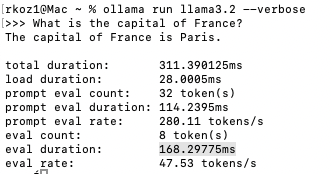
and then you can interact with straight away (here I’ve added a verbose flag, so that you can see the performance - simple query taking roughly 170ms)
OpenWebUI
Interacting via a Command Line isn’t the best experience, so additionally I’m running OpenWebUI, which in Part 2 I will explain how to share via the internet, so that you can interact with your LLM on the go (as well as securely share it with others)
To install OpenWebUI best is to install it via Docker
docker run -d -p 3000:8080 --add-host=host.docker.internal:host-gateway -v open-webui:/app/backend/data --name open-webui --restart always ghcr.io/open-webui/open-webui:main
As you can see it, it looks very similair to ChatGPT (and all the other web clients). What is great about it though is that you can easily switch between your local models and also interact with it using voice (even have a call function). In the video I’m also running macmon that helps me monitor the GPU utilisation, which jumps to 100% when running the models
Why run it locally?
Yes - you can just ask ChatGPT, or Perplexity or any other model the same thing for free via a browser, but this is just the start of the journey
With a local LLM you can do a lot more - couple examples that we will explore in more detail in Part 2:
- Build an army of agents to assist you with any task you throw at them
- Additionally, integrate with tools like n8n to be able to interact from WhatsApp, email etc.
- Safely give LLM access to some private data that you would normally be afraid to share with a big corp AI
- Use that data to augment what the agents know and can do
- Let the AI tell you what you could improve!
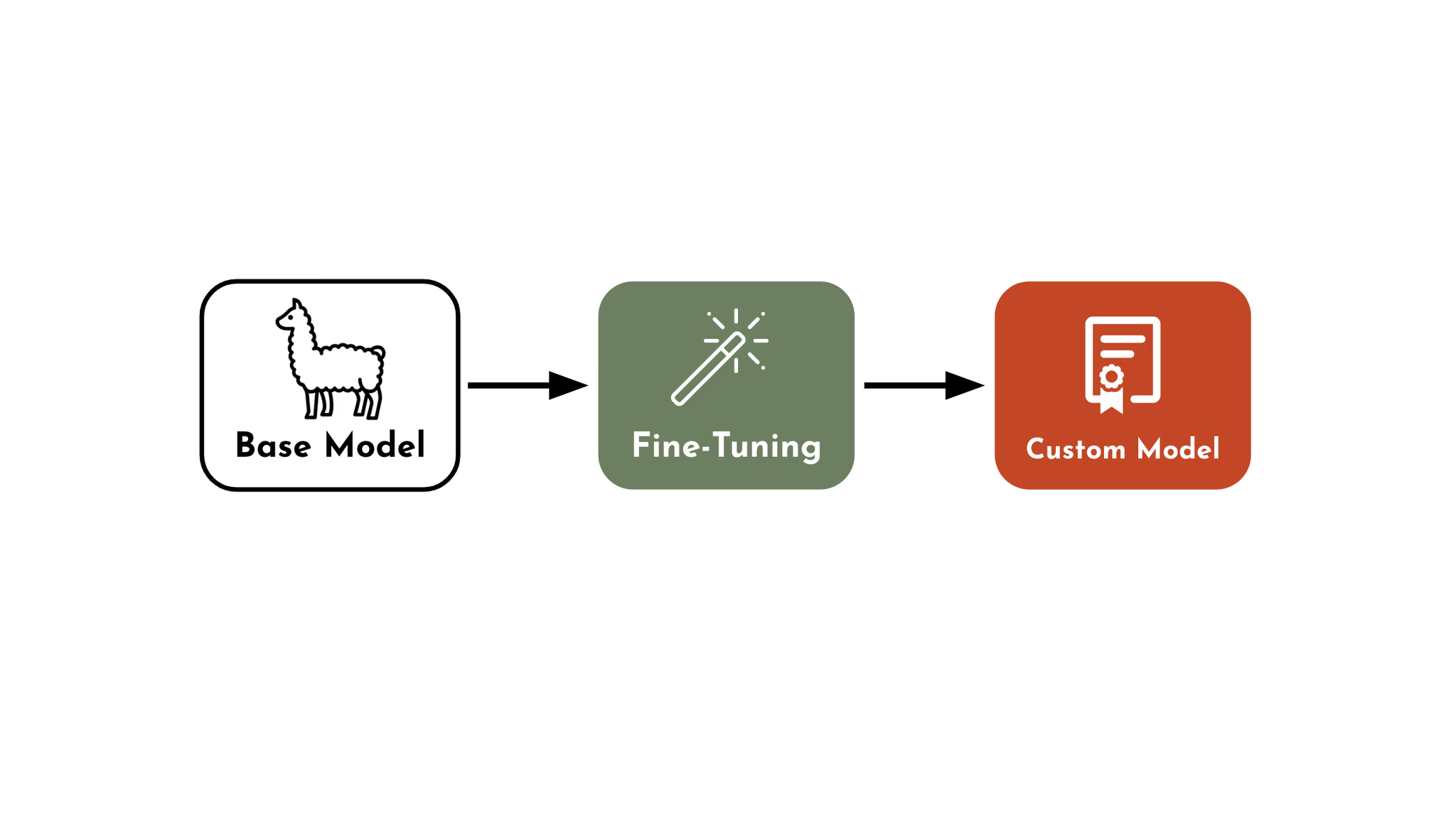
And of course you can fine tune the model to do exactly what you want it to do
Automate Everything!
I will keep it brief as I want to deep dive in Part 2, but I’m very excited to share my experience and learnings around n8n as it’s an incredible tool, offering so many integrations, as well as being highly intuitive. In ‘What’s coming in Part 2’ I’m sharing some of the things I’m using it for.
I’ve worked with tools like Camunda, Microsoft Power Automate / Flow, K2 and others in the past - but this is nothing like those. It’s easy to setup (literally one command to run it), the integrations are drag and drop, without any silly ‘premium connectors’, and you can test everything directly from the UI and see the flow of data/events.
I haven’t gotten round to running it via Docker, so for now what I suggest is running it via npm
npm install -g n8n
n8n
What you can do locally is unfortunately limited by the fact that most webhook and integration APIs (such as WhatsApp, Telegram or Gmail) require https and the most convenient way of managing certificates I found is via Cloudflare Tunnel with a domain (that will explore in the next post), however there is a workaround that you may want to try as well.
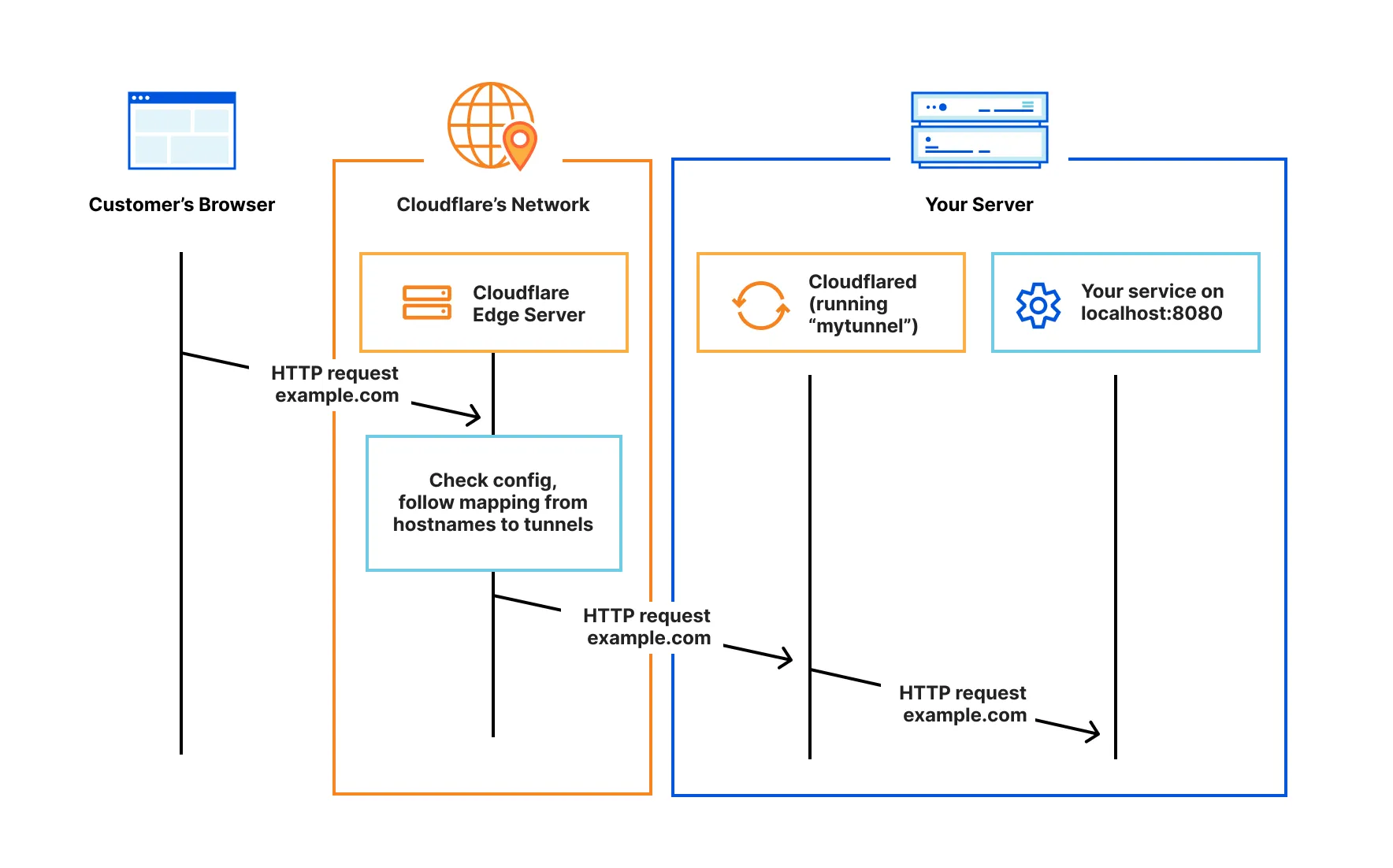
ngrok is a great utility tool that allows you to expose a local service via the ngrok domain, paired with ssl.
After downloading ngrok, simply run the below and ngrok will setup a tunnel for you that’s accessible via the internet
ngrok http {your localhost url here}
Docker
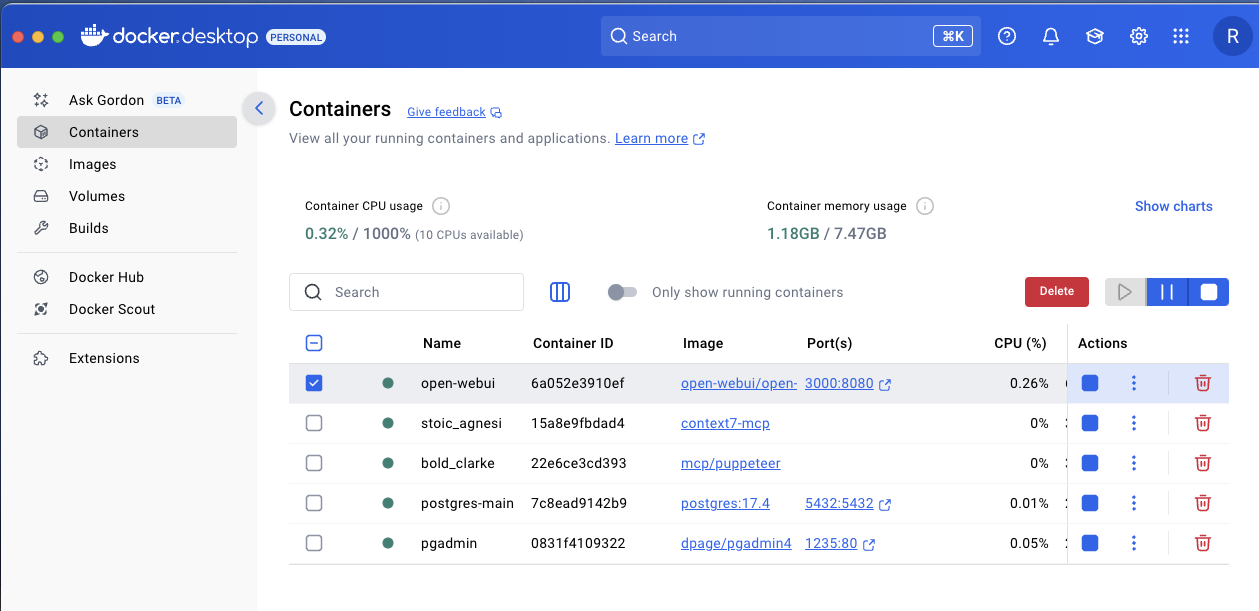
I think a key component of any home lab setup is Docker and containers. There are alternatives like podman, however the personal free version of Docker Desktop is fine for what I am doing.
Given that the readers of this post will most likely be people already familiar with containers, I don’t have to sell it to you, however I want to highlight the fact that working with all types of containers - MCP servers (which became 1st class citizens in Docker), databases, applications and more via docker, including creating extra volumes and other docker functionality, teaches you how to prototype faster and make you overall a more complete developer, so highly recommend playing around with it in your own setup more as well as running remote containers via VS Code.
Making Cursor smarter
Before talking about Part 2, I wanted to discuss something from my previous post ‘Interview with Cursor’.
One of the key issues I’ve been having with Cursor is the fact that the LLM has a cut-off point on its training data, meaning that when asked to build something in any technology, it defaults to the latest version that it is aware of. How can that be fixed?
I’ve researched the problem and found something called Context7, which is an MCP server that keeps the LLM up-to-date with the latest technology stacks.
To make your Cursor smarter I recommend the following steps (from the documentation):
Create a Dockerfile
FROM node:18-alpine

WORKDIR /app

# Install the latest version globally
RUN npm install -g @upstash/context7-mcp@latest

# Expose default port if needed (optional, depends on MCP client interaction)
# EXPOSE 3000

# Default command to run the server
CMD ["context7-mcp"]
Build the image
docker build -t context7-mcp .
Update the mcp_settings.json of your Cursor install and it will auto-run the container every time Cursor starts
{
  "mcpServers": {
    "Сontext7": {
    "autoApprove": [],
    "disabled": false,
    "timeout": 60,
      "command": "docker",
      "args": ["run", "-i", "--rm", "context7-mcp"],
      "transportType": "stdio"
    }
  }
}
After you restart Cursor, it will be always up to date. Make sure the MCP server is up and running by going to settings in Cursor and checking that there is a green light next to Context7. You can also prompt Cursor by saying ‘using Context7, …’ and you will see whether it is utilizing the tooling.

What’s coming in Part 2
Compressing my day into a PDF
I always look at ways of optimising my time. In my latest project I’m exploring a way of getting an agent swarm to help build a PDF that will:
- be emailed to me and automatically printed (not very ESG, but I keep it to a minimum)
- that I can read with my morning coffee
- that summarises new interesting articles
- summarises what is going in the world (news)
- shows day in the calendar (as managed by calendar assistant)
- updates me on my fitness goals for the day (managed by fitness assistant)
I’m currently looking at n8n and langchain/langflow to help me with this solution (and of course all the integrated services via n8n)
Accessing your services from the internet
I will discuss how you can expose your local services / UIs via a custom domain and Cloudflare Tunnel, which will give you a piece of mind in terms of security and privacy as well as help with things like SSL certificates, which are essentially when working with n8n and similar tooling.
OpenWebUI will be the portal to the accessing our LLMs as well as interacting with our agents.
With this setup, your Home Lab will be accessible anywhere, on any device, and hopefully help you with your daily life and spark additional creativity through simplified yet enhanced experimentation capability

Before you go…
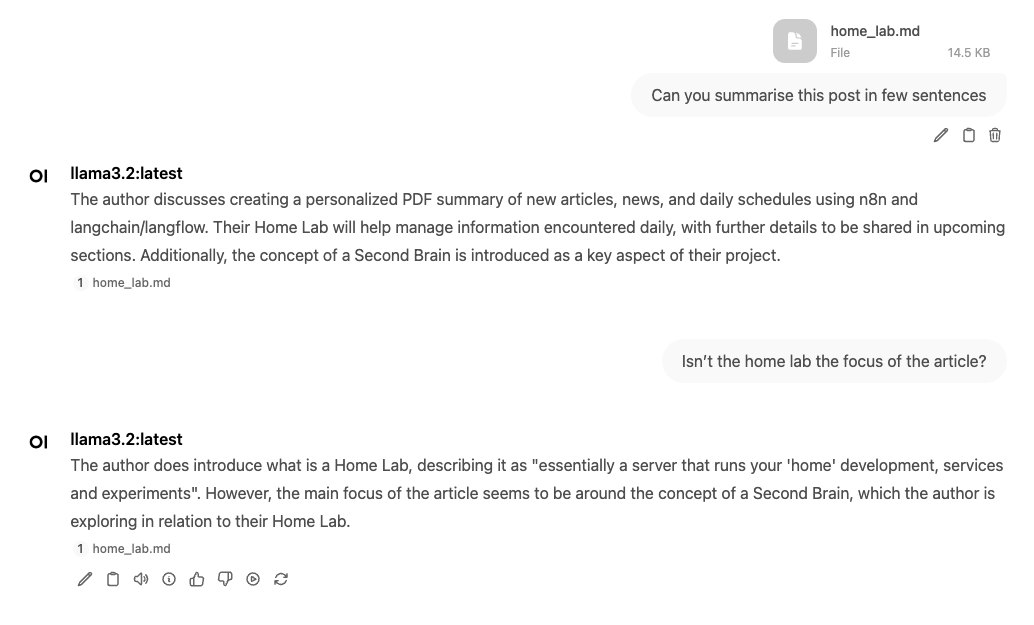
I tried to build a TLDR; section for each post. Through my interactions with LLama3.2 I realised that I don’t always get my points across very well. Although this post was about Home Lab, Llama read it and thinks it’s about the Second Brain concept that I covered previously. Whichever it is, I hope you enjoyed it. Here is a screenshot of what LLama had to say about it